CoreviaFlowCOREVIAFLOWDIGITAL PROJECT COMPANY Leave a request
EN UA RU
Automation & workspaceUS

Trello integration & automation

A new deal becomes a card on your Trello board, a card moved to 'done' changes the deal stage, and the manager sees where the work is without opening the board.

Trello is where small teams keep their work visible: a board, a few lists, cards that move from left to right. The CRM is where the client, the deal and the money live. Between them there is usually a person who creates the card by hand after every sale and then asks in chat which list it is in now. The connection removes that step: a deal that reaches the agreed stage becomes a card in the right list with the client's details, the checklist and a link to the deal already in it; a card moved to another list changes the deal stage in the CRM; a comment on the card lands in the client's history. Trello stays exactly as your team set it up — the connection only creates cards and watches them move.

What we connect

  • We look at your Trello together: which boards and lists take part, what a card usually contains — labels, members, checklist, due date — and which of those should be visible in the CRM. Usually one board takes part, not the whole workspace.
  • A named user on your side — usually the board administrator — issues a personal access key for the connection in the Trello settings. When issuing it, they choose what the key may do (read only, or read and write) and for how long it is valid. The key can be revoked at any moment from the same settings page.
  • We map the deal to the card: the deal name to the card title, the client and the link to the card in the CRM to the description, the manager to a card member, the CRM stage to the list. Labels and due dates are matched one to one so the board keeps looking the way the team is used to.
  • We agree what starts what: a deal reaching the agreed stage creates a card in the first list; a card moved to another list changes the deal stage; a card archived or moved to 'done' closes the step in the CRM; a comment on the card is copied to the client's history.
  • We set up notifications: Trello itself sends a notice to the connection every time something changes on the chosen board — a card is created, moved, commented on or archived — so nothing has to be checked by hand. Each notice is signed by Trello, and the connection checks the signature before trusting it.
  • We run the connection on a copy of the board first, check the cards it creates against your usual card, and only then point it at the live board. Your lists, labels, automation rules and Power-Ups stay untouched.

Automation scenarios

01

A won deal becomes a card in the 'New orders' list

Before the manager wins the deal, opens Trello, creates a card by hand, pastes the client's details and adds the standard checklist from memory — and sometimes the card never gets created.

After the moment the deal is marked won, a card appears in 'New orders' with the client, the agreed scope, the checklist and a link to the deal; the team only picks it up.

02

A card moves to 'Done' — the deal moves too

Before the team drags the card to 'Done', and the manager finds out a day later when the client asks.

After the moment the card lands in 'Done', the deal in the CRM moves to the next stage and the manager gets it in their usual list of things to do — send the invoice, ask for feedback.

03

A comment on the card lands in the client's history

Before the team writes on the card 'the client has not sent the address', and the manager sees it only when they open the board.

After the comment is copied to the client's history in the CRM with the author and the time, the manager reads it in their usual place and calls the client right away.

04

The manager sees the board from the client card

Before to answer 'where is my order?' the manager opens Trello, scrolls the board and looks for the card by the client's name.

After the client card in the CRM shows which list the card is in, who is on it and when it is due, with a direct link to the card — the answer takes seconds.


How it works technically

For those who want to check: each point links to the official documentation page it comes from.

  • Access to the Trello REST API uses an API key plus a user token; the token can read and write the entire account, so it must be kept secret.

    Source: developer.atlassian.com ↗ checked 2026-09-28
  • A card is the basic unit in Trello: it has a name, description, labels, members and a history of actions including comments; the API lists, views, creates and edits boards, lists and cards.

    Source: developer.atlassian.com ↗ checked 2026-09-28
  • Webhooks: whenever a watched board, list or card changes, Trello makes an HTTP request to the address you choose; there is no limit on the number of webhooks.

    Source: developer.atlassian.com ↗ checked 2026-09-28
  • Webhook requests are signed by Trello (X-Trello-Webhook header) and retried 3 times with growing pauses if the receiver is unavailable.

    Source: developer.atlassian.com ↗ checked 2026-09-28
  • Users see every application they authorized and can revoke its token in the account settings; token scopes are read, write and account.

    Source: developer.atlassian.com ↗ checked 2026-09-28
  • Rate limits: 300 requests per 10 seconds per API key and 100 requests per 10 seconds per token; exceeding them returns error 429.

    Source: developer.atlassian.com ↗ checked 2026-09-28

Limits

Trello limits how often it can be asked: no more than 100 requests per 10 seconds for one access key and 300 per 10 seconds for one application, with a much stricter limit on requests about member accounts; when the limit is exceeded Trello answers with error 429, so bulk changes go in portions and the connection is built to wait and retry. Long lists — cards, actions — come in portions of no more than 1000, and a request for all cards of a board together with their full history can be refused as too large, so history is read separately. Notifications from Trello are retried 3 times if our side does not answer (after 30, 60 and 120 seconds) and then dropped; if notifications keep failing for 30 days, Trello switches them off on its own, and if the key they are tied to is revoked or expires, the notifications are deleted with it — so we keep an eye on the key's expiry date and on the health of the receiving side. The access key acts on behalf of the person who issued it and can read and write everything that person can, so we recommend issuing it from a named user with access to the agreed board only; if the key ever leaks, it must be revoked immediately in the Trello settings.

Screenshots

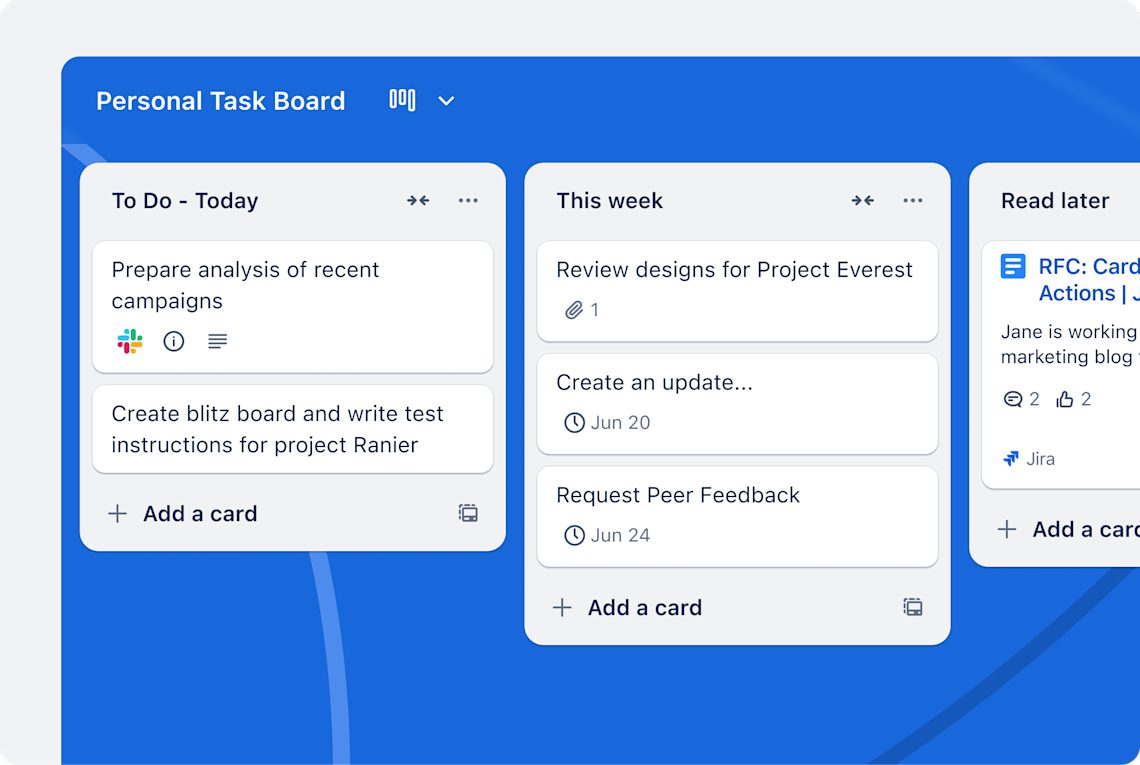
Trello board with lists To Do, This week and Read later and cards with due dates
A Trello board: each card is a task; the CRM can create cards and see when they move between lists. Source: trello.com ↗
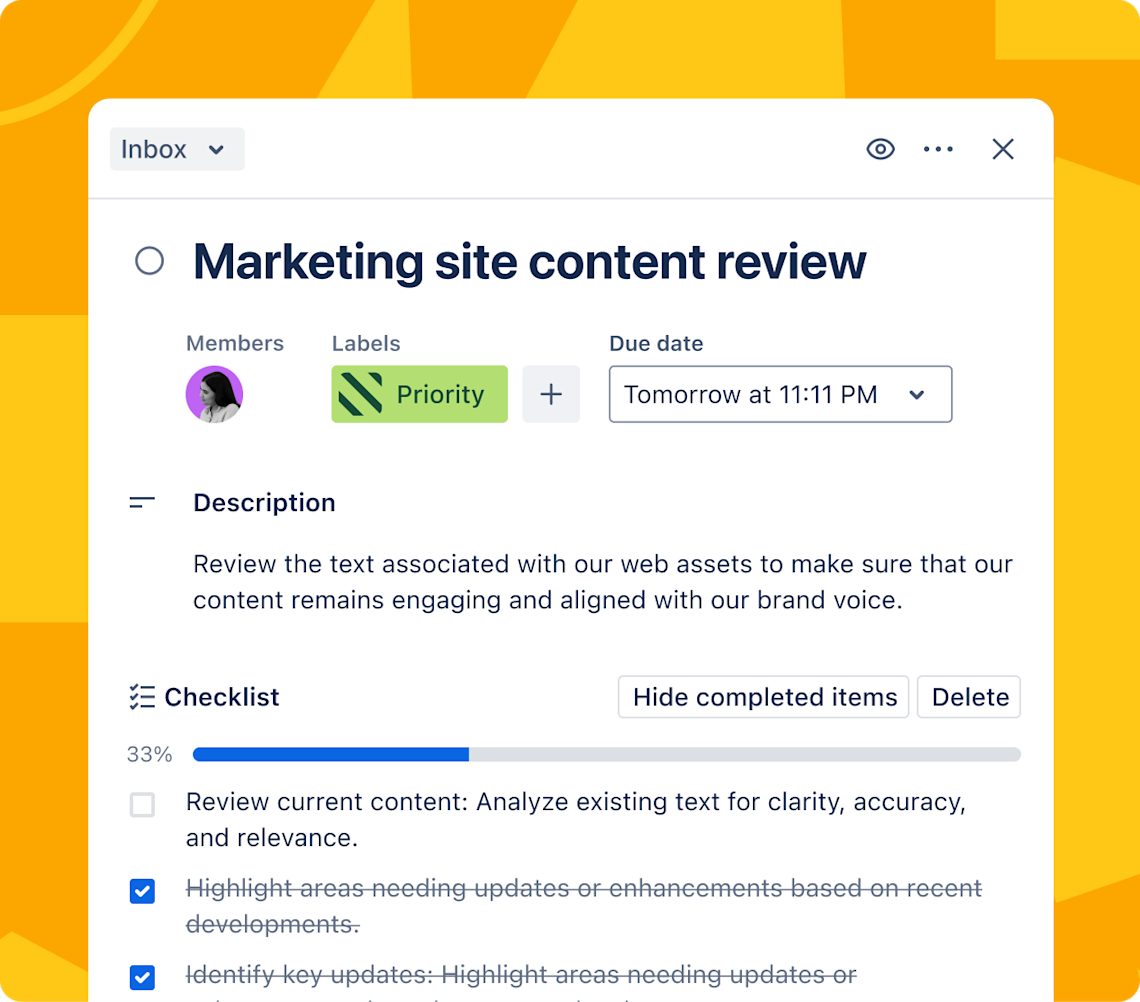
Trello card with member, Priority label, due date, description and checklist progress
Inside a Trello card — members, labels, due date and checklist; these fields are matched with the client card in the CRM. Source: trello.com ↗

How to start

Three steps from a first message to work on your project.

  1. 01

    Leave a request

    Describe the task in the form — in text or by voice. Budget and timing are optional.

  2. 02

    We review and estimate

    A developer studies the brief, asks about anything unclear and sends an estimate.

  3. 03

    We start

    Once scope and price are agreed, the work begins.

or write to info@coreviaflow.space

Questions

Does our team have to stop using Trello?
No. The team keeps dragging cards on the same board; the connection only creates cards for new deals and watches where they move. The one thing that changes is that new cards already contain the client's details and a link to the deal, and the manager sees the board's state from the CRM.
Will the connection see all our boards?
The access key can see everything the user who issued it can see — that is how Trello works. So we recommend issuing it from a named user who is a member of the agreed board only, and we set the connection to watch that one board. The key can be revoked at any moment in the Trello account settings.
What happens when the access key expires?
Trello stops accepting the connection, and the notifications tied to that key are deleted with it, so cards stop flowing between the two systems until a new key is issued and the notifications are set up again. The validity period is chosen when the key is issued, so we write the date down together and agree in advance who reissues the key before it comes.
Can we keep our Butler rules and Power-Ups?
Yes. The connection creates cards and reads their movement the same way a person would, so your automation rules and Power-Ups keep working on those cards too. We only check together that a rule does not move a new card somewhere unexpected before the team sees it.

Tell us what needs to be connected

Describe the task in text or a voice message. We look at your setup and reply with a plan.