CoreviaFlowCOREVIAFLOWDIGITAL PROJECT COMPANY Leave a request
EN UA RU
Automation & workspaceUS

Jira integration & automation

A won deal becomes a task in Jira, a client's complaint becomes a support task with a link to their card, and the manager sees the task status in the CRM without asking the engineers.

Jira is where engineers, implementation teams and support live: sprints, boards, task statuses. The CRM is where the client, the deal and the money live. Between the two there is usually a person — the manager who retypes the client's request into Jira and then asks in chat 'is it done yet?'. The connection takes that person out of the middle: a won deal opens an implementation task in Jira with the client's details already in it, a client's message becomes a support task with a link to the client card, a status change in Jira shows up on the deal in the CRM, and an engineer's comment lands in the client's history. Engineers keep working in Jira, managers keep working in the CRM, and nobody copies anything by hand.

What we connect

  • We look at your Jira together: which projects take part (implementation, support, development), which task types and statuses matter, and which of them should be visible in the CRM. Usually one or two projects take part, not the whole Jira.
  • The Jira administrator chooses how the connection signs in. For a connection that works only for your company, Jira itself suggests the simple way: the email of a named user plus a personal access key issued in the Atlassian account settings, with an expiry date you choose. For an application that acts on behalf of several users, Jira uses sign-in with explicit consent: each user sees what the application asks for and allows only that.
  • We map the deal to the task: the deal name to the task title, the client and the link to the card to the description, the CRM manager to the reporter, the Jira assignee to the responsible engineer shown in the CRM. Jira statuses are matched to the stages you want to see on the deal — 'in progress', 'waiting for the client', 'done'.
  • We agree what starts what: a deal marked won creates an implementation task in the chosen project; a client's message marked as a problem creates a support task; a task moved to 'done' in Jira changes the deal stage in the CRM; a comment on the task is copied to the client's history.
  • The Jira administrator sets up notifications: Jira itself sends a notice to the connection whenever a task is created, changed or deleted, or a comment or attachment appears — so nothing has to be checked by hand. The notices are limited with a task filter to the projects we agreed on, so the connection hears only about tasks that concern the CRM.
  • We run the connection on a test project first, check the tasks it creates against your task template, and only then point it at the live project. Your boards, workflows and automation rules in Jira stay exactly as they were.

Automation scenarios

01

A won deal opens an implementation task in Jira

Before the manager wins the deal, writes to the team lead in a messenger, and the team lead creates a task in Jira by hand a day later, retyping the client's details and the agreed scope.

After the moment the deal is marked won, a task appears in the implementation project with the client, the agreed scope, the deadline and a link to the deal already in it; the team lead only assigns the engineer.

02

A client's problem becomes a support task with a link to the card

Before the client writes 'it does not work', the manager forwards the message to support in chat, and a week later nobody remembers which client it was and what was promised.

After the manager marks the message as a problem in the CRM, and a support task appears in Jira with the client's words, a link to the client card and the manager's name; the engineer opens the card and sees the client's history before replying.

03

The task status changes — the manager sees it in the CRM

Before the manager asks the engineer 'is it done yet?' three times a day, and the client asks the manager the same.

After when the engineer moves the task to 'in progress', 'waiting for the client' or 'done', the deal in the CRM shows the same stage on its own, and the manager answers the client without opening Jira.

04

An engineer's comment lands in the client's history

Before the engineer writes in the task 'need access to the client's server', and the manager sees it only when they think to open Jira.

After a comment on the task is copied to the client's history in the CRM with the author and the time, the manager reads it in their usual place and asks the client for the access right away.

How it works technically

For those who want to check: each point links to the official documentation page it comes from.

  • Jira Cloud gives an official interface for working with tasks from outside — it is what custom integrations, scripts and applications are built on.

    Source: developer.atlassian.com ↗ checked 2026-09-28
  • The right to 'create and manage tasks' lets a connection create and edit tasks, post comments on behalf of the user, keep work logs and delete tasks.

    Source: developer.atlassian.com ↗ checked 2026-09-28
  • The right to 'read tasks' gives access to project and task data, task search and the things attached to tasks — files and work logs.

    Source: developer.atlassian.com ↗ checked 2026-09-28
  • Jira itself sends a notice to the connection's address when an event happens in it — the connection does not need to keep asking Jira for changes.

    Source: developer.atlassian.com ↗ checked 2026-09-28
  • Notices are sent when a task is created, changed or deleted and when comments or attachments appear; for all of these events the set of tasks can be narrowed with a task filter.

    Source: developer.atlassian.com ↗ checked 2026-09-28
  • An outside application gets access to Jira data on behalf of a specific user — within the rights that user has allowed.

    Source: developer.atlassian.com ↗ checked 2026-09-28

Limits

Notifications from Jira can be set up through the administration panel only by a user with the global 'Administer Jira' permission — without an administrator on your side the connection cannot be started. The personal access key (Jira calls it an API token) is issued for a period from one day up to one year; when it runs out, the key has to be issued again and updated in the connection. If the notifications are registered by an application, such a subscription lives for 30 days and has to be extended regularly, otherwise the notices stop coming; the number of such subscriptions is also limited — five per application per user in one Jira. Jira limits how often it can be asked: when the limit is exceeded it answers with error 429, and the connection has to wait the time it names and retry later. The same task cannot be changed too often — no more than 20 writes in 2 seconds and 100 writes in 30 seconds — so bulk changes go in portions. And one more thing: public applications for the Atlassian catalogue are not allowed to collect users' personal keys, so sign-in by key is only for a connection that works for your own company.

Screenshots

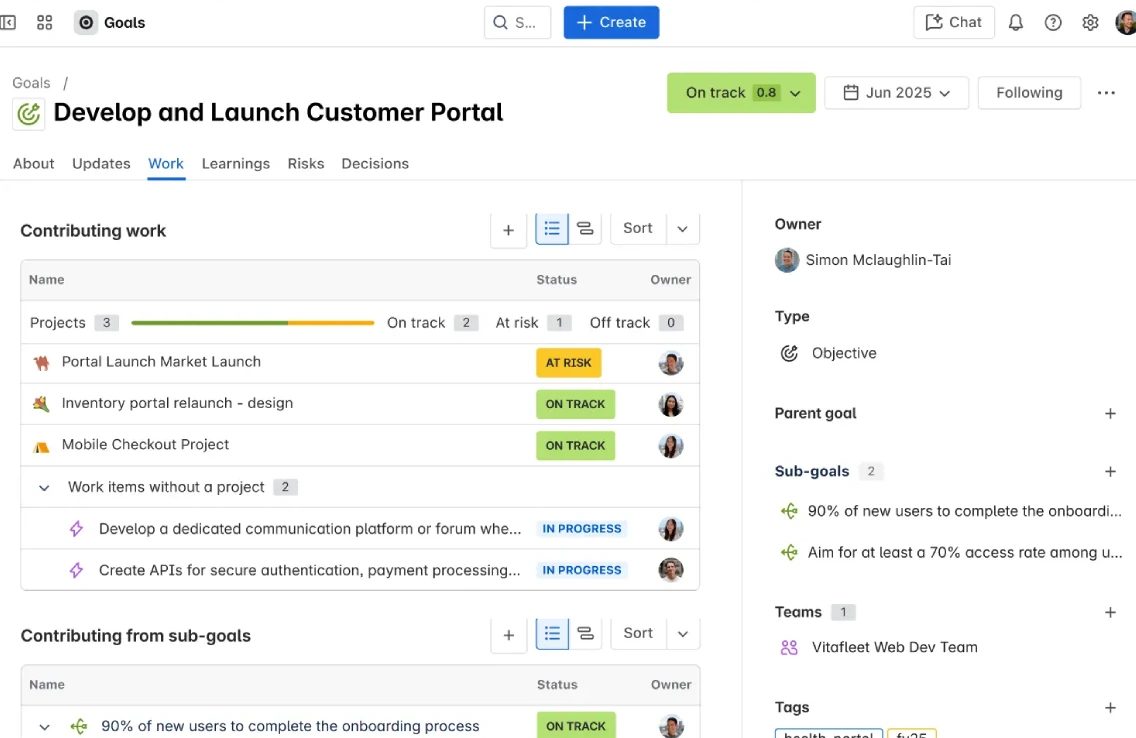
Jira goal page with contributing work items and statuses
A Jira goal with its contributing work items: every status change on an item can be sent to the CRM through a webhook. Source: www.atlassian.com ↗
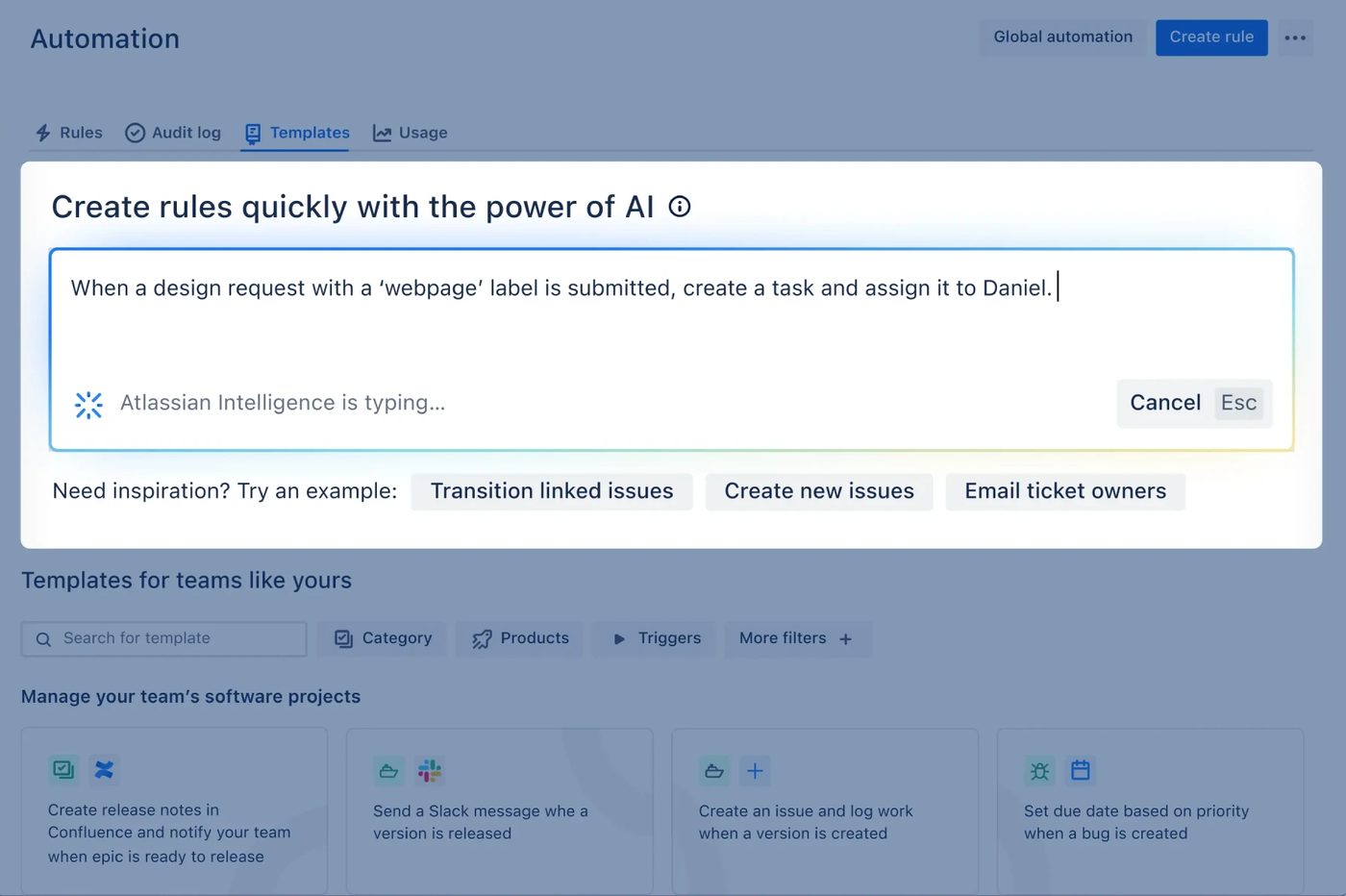
Jira automation rule editor
Jira automation rules: a condition inside Jira can create or update an issue, or call an external URL such as the CRM. Source: www.atlassian.com ↗

How to start

Three steps from a first message to work on your project.

  1. 01

    Leave a request

    Describe the task in the form — in text or by voice. Budget and timing are optional.

  2. 02

    We review and estimate

    A developer studies the brief, asks about anything unclear and sends an estimate.

  3. 03

    We start

    Once scope and price are agreed, the work begins.

or write to info@coreviaflow.space

Questions

Do our engineers have to start working in the CRM?
No. Engineers stay in Jira with their boards and sprints; the CRM only reads the task status and comments and shows them on the deal. The one thing that changes for them is that the task already contains the client's details and a link to the card, so they stop asking the manager 'who is this for?'.
Will the connection see all our Jira projects?
It sees only what the user it signs in as is allowed to see, so we recommend giving it a user with rights to the agreed projects only. If it works as an application with user consent, each user allows only the rights it asks for. Notifications are narrowed further with a task filter, so the connection hears only about tasks that concern the CRM.
What happens when the access key expires?
Jira stops accepting the connection, and tasks stop moving between the two systems until the key is issued again. The expiry date is chosen when the key is created — from one day up to one year — so we write that date down together and agree in advance who reissues the key before it comes.
Which side is the source of truth — Jira or the CRM?
We decide it per field, not per system. The client, the deal and the agreed scope live in the CRM and are shown in Jira; the task status, the assignee and the work done live in Jira and are shown in the CRM. Each field has one home, so the two never argue.

Tell us what needs to be connected

Describe the task in text or a voice message. We look at your setup and reply with a plan.