CoreviaFlowCOREVIAFLOWDIGITAL PROJECT COMPANY Leave a request
EN UA RU
Automation & workspaceUS

Slack integration & automation

Slack as the team's alert desk: leads, deals and calls from the CRM land in a channel, and the team acts on them without leaving the chat

Your team already lives in Slack, but the news about a new lead, a signed deal or a missed call still comes by email or gets noticed only when someone opens the CRM. Slack officially lets outside programs post messages, put buttons into them, listen to what people write and answer commands. We use that to bring the CRM into the channel where the team already works: the right message reaches the right people at once, and one click in the message updates the record.

What we connect

  • A new lead from the website, ads or a call appears in the sales channel within seconds — with the name, the source and a link to the card.
  • Buttons right in the message: «Take it», «Call back», «Mark as lost» — one click changes the deal in the CRM without opening it.
  • The bot answers questions from the chat: type a command with the client's name and get the card summary, the stage and the next step.
  • A daily digest at the chosen time: new leads, deals moved to the next stage, stuck deals and overdue tasks — in one message.
  • Missed calls from the phone system: the responsible manager gets a direct message with the client's name and a «Call back» button, and the call is logged in the CRM.
  • Each event goes to its own channel: leads to sales, payments to finance, complaints to support — set up once, no manual forwarding.
  • Message frequency is under control: when many events arrive at once, they queue up and are grouped, so nothing is lost and the channel is not flooded.

Automation scenarios

01

A lead comes in from the website

Before the manager sees the request in the CRM only when he opens it, sometimes an hour later.

After a message with the lead's name and source lands in the sales channel within seconds, the first available manager presses «Take it», and the card gets an owner right away.

02

A client calls and nobody picks up

Before the missed call sits in the phone system log and is found the next day.

After the responsible manager gets a direct message in Slack with the client's name and the deal, presses «Call back», and the CRM records the task and the outcome.

03

The morning stand-up

Before the head of sales collects yesterday's picture by hand from several CRM reports.

After at the chosen time the channel receives one digest — new leads, deals that moved forward, deals that have not moved for several days, overdue tasks — and the meeting starts from it.

04

A deal is won

Before the team hears about it at the weekly meeting, and finance learns about the invoice from an email.

After the moment the stage changes to «Won», the general channel gets a message with the deal and the manager, and the finance channel gets its own notification to issue the invoice.

05

A manager asks about a client from the phone

Before on the road the manager opens the CRM app, searches for the company, scrolls the history.

After he types a command with the client's name in Slack, and the bot replies in the same thread with the stage, the last contact and the next step.

How it works technically

For those who want to check: each point links to the official documentation page it comes from.

  • Slack's Web API is the official interface for reading information from a workspace and making changes in it, such as posting messages.

    Source: docs.slack.dev ↗ checked 2026-09-27
  • Incoming webhooks are the simplest way to post messages from an outside app into Slack: a unique URL receives the message text as JSON.

    Source: docs.slack.dev ↗ checked 2026-09-27
  • The Events API lets an app react to what happens in Slack: Slack itself calls the app's server when an event occurs, so there is no polling.

    Source: docs.slack.dev ↗ checked 2026-09-27
  • Block Kit lets a message carry interactive elements such as buttons and menus; a message can hold up to 50 blocks.

    Source: docs.slack.dev ↗ checked 2026-09-27
  • An app may post about one message per second per channel, whichever way it sends them; short bursts above that are allowed.

    Source: docs.slack.dev ↗ checked 2026-09-27
  • Slack signs every request it sends to an app with a secret unique to that app, so the app can verify the request is authentic.

    Source: docs.slack.dev ↗ checked 2026-09-27

Limits

Slack allows an app about one message per second per channel; above that it answers with an error and a pause to wait, so we queue and group messages instead of posting each one. Slack must get a reply within three seconds both for events and for button clicks, so slow CRM operations run in the background and the user sees the result a moment later. Event delivery is best-effort: it may lag during Slack incidents, and events older than two hours are dropped, so key records are re-checked directly in the CRM. A simple posting address always writes to one fixed channel and cannot edit or delete a message; editing and posting to several channels need a full app. Scheduled messages can be set at most 120 days ahead and no more than 30 per five minutes per channel. Commands cannot be typed inside threads. Slack's no-code Workflow Builder is listed as available on paid plans only; the custom app we build does not depend on it.

Screenshots

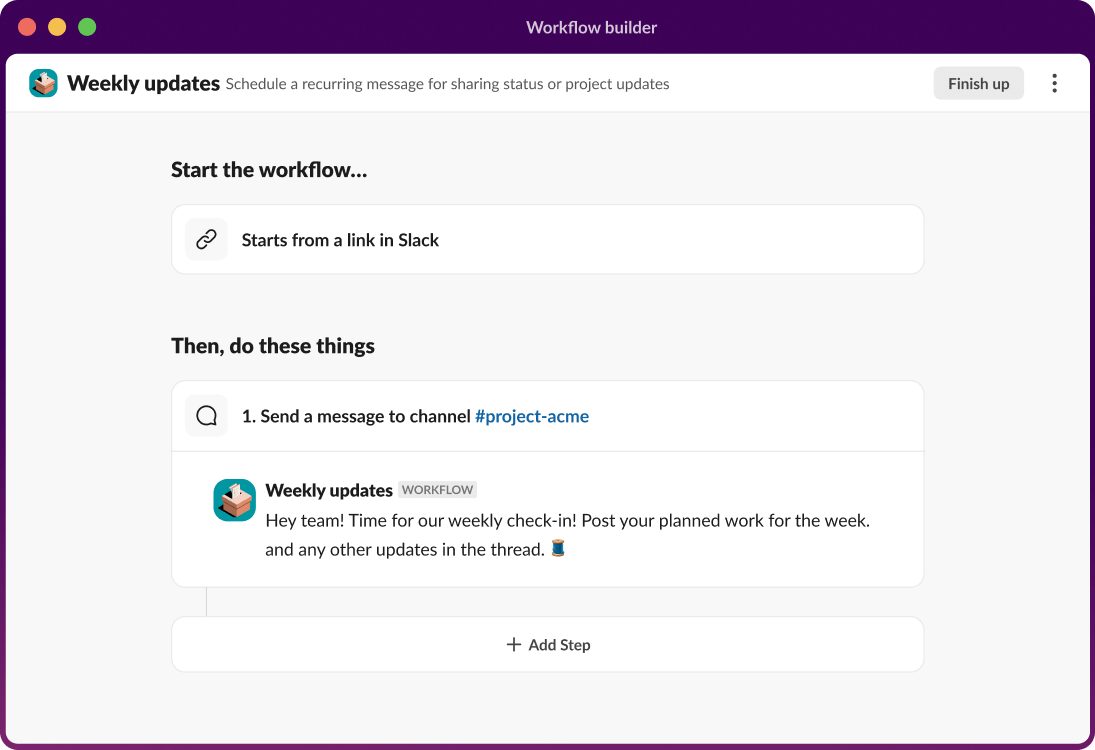
Slack Workflow Builder: a recurring message with a status update is scheduled to be posted to a channel
A scheduled message to the channel — the base of the daily digest Source: slack.com ↗
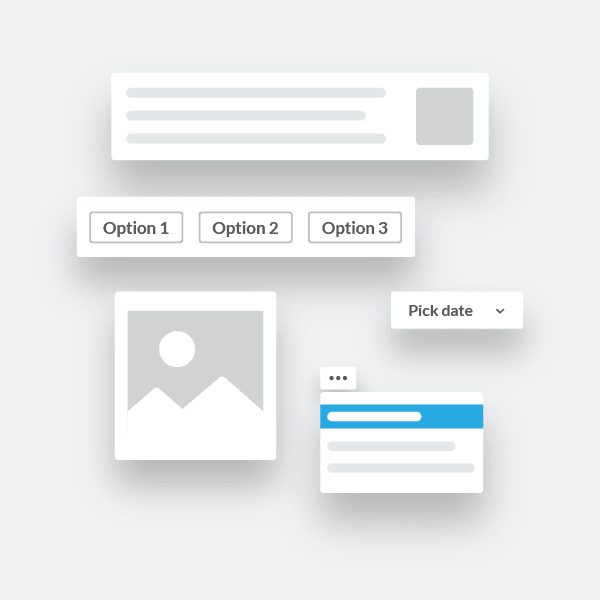
Slack Block Kit building blocks: text sections, option buttons, an image block and a date picker inside a message
Buttons and menus right inside the message Source: docs.slack.dev ↗

How to start

Three steps from a first message to work on your project.

  1. 01

    Leave a request

    Describe the task in the form — in text or by voice. Budget and timing are optional.

  2. 02

    We review and estimate

    A developer studies the brief, asks about anything unclear and sends an estimate.

  3. 03

    We start

    Once scope and price are agreed, the work begins.

or write to info@coreviaflow.space

Questions

Does the team need to install anything?
No. We create an app inside your Slack workspace, a workspace admin approves it once, and from then on messages arrive in the channels you choose. Team members install nothing on their side.
Will the channel be flooded when many leads come in at once?
Slack itself limits an app to about one message per second per channel, and we work inside that: messages queue up and post in order, and when a lot arrives at once, they are grouped into one message instead of dozens. Nothing is lost.
Can we do this with Workflow Builder instead of a custom app?
Workflow Builder is Slack's own no-code constructor, and Slack lists it as available on paid plans only. For a simple «post to a channel» step it is enough. Buttons that change CRM records, a bot that answers commands and a grouped digest need a custom app, which is what we build.
Is it safe to let an outside program write into our Slack?
Slack signs every request it sends to our server with a secret unique to the app, and we check that signature before acting. The app gets only the permissions your admin approves, and the address used for posting is kept as a secret and never shared.

Tell us what needs to be connected

Describe the task in text or a voice message. We look at your setup and reply with a plan.

Pairs with Slack

Related integrations

Implementation · Development · Integrations →

Slack is a trademark of its owner. CoreviaFlow is not affiliated with it unless stated otherwise. Screenshots are taken from public vendor materials; the source is shown under each one.